DOCUMENTATION
Installation and first scan
Install KomaLens in Chrome or Edge, pin the icon and make your first scan in under a minute.
KomaLens works in desktop Google Chrome and Microsoft Edge. It's free, needs no account, and in its default mode (Local) there's nothing else to set up.
Install in Chrome
- Open the KomaLens listing on the Chrome Web Store.
- Click Add to Chrome.
- Confirm with Add extension.
Install in Edge
Edge installs Chrome Web Store extensions just fine, but asks for permission the first time:
- Open the same Chrome Web Store listing in Edge.
- If a banner appears at the top of the page, click Allow to accept extensions from other stores. You can also turn on Allow extensions from other stores at
edge://extensions. - Click the button to add the extension and confirm.
Note
Depending on your Edge version, the banner or the option name may look slightly different. What matters is allowing Chrome Web Store extensions once.Pin the icon
To keep KomaLens at hand:
- Click the extensions icon (the puzzle piece) in the browser toolbar.
- Find KomaLens and click the pin.
Your first scan
- Open a page with Japanese, Chinese or Korean text: a manga, a video with subtitles, an image.
- Click the KomaLens icon. A window opens with the current mode and the Scan area button.
- Click Scan area and drag a box over the text. You'll see the rainbow border and the selection size. Press Esc to cancel.
- Release the mouse button. The side panel opens with the original text, the translation and the Words tab.
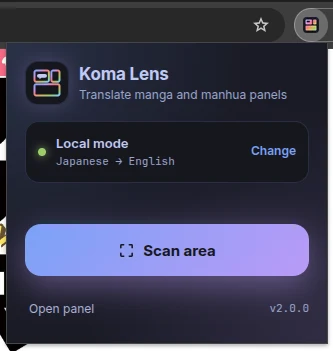
From that window you can also Open panel to keep the side panel open while you read and scan from there.
No keyboard shortcut
KomaLens has no keyboard shortcut: you use it from its icon or the side panel. If you scan from the panel and the browser won't let it read the tab, you'll see the **Allow on this site** button. It's explained in [Troubleshooting](/en/docs/troubleshooting#i-cant-read-this-tab).The first time in local mode
The first scan in Local takes a bit longer: KomaLens prepares its OCR models, and the browser may need to download the language pack for your pair (for example, Japanese → English). After that, scans are much faster. More in Local mode.
Next steps
- Learn about the three analysis modes and pick the one that suits you.
- For notes and literal translations, set up an AI provider.