DOCUMENTATION
Set up an AI provider
Connect any OpenAI-compatible API to use the Hybrid and Image to API modes.
The Hybrid and Image to API modes use an AI model from your provider. KomaLens speaks the OpenAI standard, so any provider with an OpenAI-compatible API works: the ones in the table below are just popular examples. You can use the account you already have with that provider, through its API.
Subscription vs. API
Many providers bill API usage separately from their chat subscription. For example, OpenAI bills ChatGPT subscriptions and API usage separately. Check how yours bills.The three fields
Everything lives in Settings → API provider:
| Field | What goes there |
|---|---|
| Base URL | The provider's OpenAI-compatible API address. KomaLens calls {Base URL}/chat/completions. |
| API key | The key you create in the provider's dashboard. It's optional: local models like Ollama don't need one. |
| Model | The exact model ID. KomaLens loads your provider's model list so you can pick it. |
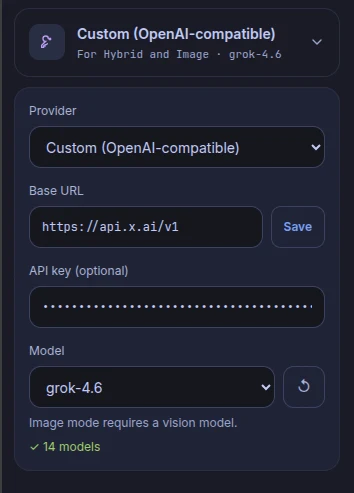
The Provider list has two options: OpenRouter, with the base URL already filled in, or Custom (OpenAI-compatible), where you type the base URL of any other provider.
Permission to connect to the provider
When you save the base URL, KomaLens asks for permission to connect to that provider's domain only (for example, openrouter.ai). It's an optional site permission: if you decline, Hybrid and Image to API can't connect, but local mode keeps working. More in Extension permissions.
Base URLs of popular providers
Checked against each provider's official documentation in October 2026. The list isn't closed: if your provider has an OpenAI-compatible API, look up its base URL in its docs.
| Provider | Base URL | Note |
|---|---|---|
| OpenRouter | https://openrouter.ai/api/v1 | Models as provider/model |
| Kilo Gateway | https://ai-gateway.kilo.ai/api/v1 | Models as provider/model |
| OpenAI | https://api.openai.com/v1 | |
| xAI | https://api.x.ai/v1 | |
| Google Gemini | https://generativelanguage.googleapis.com/v1beta/openai/ | Google's OpenAI-compatible layer |
| DeepSeek | https://api.deepseek.com/v1 | Its main models are text-only: use it in Hybrid |
| Claude (Anthropic) | https://api.anthropic.com/v1/ | Experimental, see What about Claude? |
| Ollama (local) | http://localhost:11434/v1 | See Local models with Ollama |
| LM Studio (local) | http://localhost:1234/v1 | See LM Studio |
Step by step with OpenRouter
OpenRouter gives you models from many companies with one account and one key, so it's a good place to start.
- Create an account at openrouter.ai.
- Add credits from the credits section of your account. You pay per use, depending on the model you choose.
- Create an API key in the Keys section. Copy it: it's only shown in full once.
- In KomaLens, open Settings → API provider.
- Enter the base URL
https://openrouter.ai/api/v1and save it. Accept the permission to connect toopenrouter.ai. - Paste your API key.
- Pick a model from the list. For Image to API, one that accepts images.
- Switch to Hybrid or Image to API and scan.
With Kilo, OpenAI, xAI, Gemini or DeepSeek it works the same way: create the key in that provider's dashboard and use its base URL from the table.
Which model should I pick?
Whichever you like: KomaLens doesn't recommend any model. Just keep this in mind:
- Hybrid sends text, so any text model works.
- Image to API sends an image, so the model must accept images.
How to tell if a model accepts images
Check the model's page on your provider's website. It's usually listed as image input, vision or multimodal. On OpenRouter, for example, each model page lists its input modalities. If you pick a model without vision for Image to API, the provider returns an error: see Troubleshooting.
What about Claude?
Anthropic's own API doesn't follow the OpenAI standard, but Anthropic offers a compatible layer at https://api.anthropic.com/v1/. Its docs describe it as meant for testing and comparing models, not as a production solution, and it ignores or rejects some parameters: for example, on Claude 4.7 and later it returns a 400 error if temperature is below 1.
- Recommended route: use Claude through OpenRouter or Kilo, with models like
anthropic/…. - Direct connection (experimental): it works and is tested with KomaLens, but it's experimental because Anthropic's compatible layer is. Use the base URL above and an API key from the Anthropic console.
Where your key is stored
Your API key, base URL and model are stored on your device only, in the extension's local storage. KomaLens has no servers: the key goes straight from your browser to your provider on each request and never passes through us.
Heads up
Treat your API key like a password. If you think it leaked, delete it in your provider's dashboard and create a new one.