DOCUMENTATION
Local mode
Free, private translation inside your browser: requirements, language packs and limitations.
In Local everything happens inside your browser: KomaLens recognizes the text with its OCR, translates it with the browser's built-in Translator API and splits the words with analyzers that ship with the extension. It's free, private and needs no API key.
Requirements
- Desktop Chrome or Edge with the built-in Translator API. KomaLens is tested from Chrome 156.0.8078.47 and in Microsoft Edge, and should work from the first stable Chrome version that includes that API.
- Other Chromium-based browsers might work if they ship the Translator API, but they are untested.
- It doesn't work on mobile.
If your browser lacks the API, KomaLens tells you with the error Your browser doesn't support local mode and offers to switch to Hybrid, which doesn't depend on it.
What happens on your device
- Reading (OCR): PP-OCRv6 detects and recognizes the text in the crop.
- Translating: the browser's Translator API translates it on the device.
- Analyzing words: the sentence is split into words with readings and types. Japanese uses kuromoji, Chinese uses jieba and Korean uses the analyzer bundled with the extension.
OCR models and dictionaries ship inside the extension: KomaLens downloads nothing from third parties after you install it. The only downloads are the browser's own language packs.
Language packs
The Translator API needs one pack per language pair (for example, Japanese → English). The browser downloads it once and then translates offline.
In Settings → Chrome language packs you see the status of each pair:
| Status | What it means |
|---|---|
| Ready | The pack is installed. You can translate offline. |
| Downloading % | The browser is fetching it. It can take a few minutes depending on your connection. |
| Download | Not there yet. Click the button to get it. |
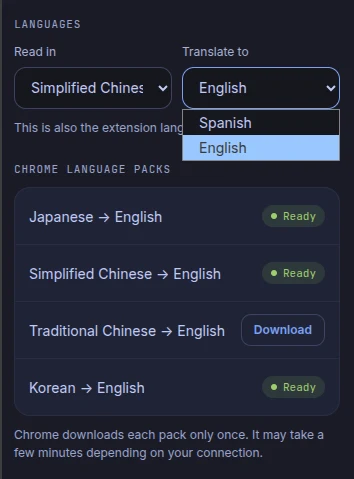
Under Languages you choose what you'll read (Japanese, Simplified Chinese, Traditional Chinese or Korean) and what to translate into (Spanish or English). The target language is also the extension's interface language.
The first time is slower
On the first scan of each session you'll see the Preparing models step: KomaLens loads the OCR into memory. If the language pack is missing too, the browser downloads it. From the second scan on, everything is much faster.
Limitations
- No notes or literal translation. Those extras come from an AI model, so they're only in Hybrid and Image to API. In the result you'll see the card “Notes and literal translation — available in Hybrid or API mode”.
- Heavily stylized text. Local OCR works best with clear printed text. Hand-drawn lettering or text with strong effects reads better in Image to API.
- Machine translation. The Translator API translates sentence by sentence, without the page's context. For nuance, use the word breakdown or an AI mode.
Privacy
In local mode, the capture is processed in your browser and never leaves it. Not even we could see it: KomaLens has no servers.