DOCUMENTATION
Analysis modes
Local, Hybrid and Image to API: what each one sends, what it costs and when to use it.
KomaLens has three ways to analyze what you select. All of them read Japanese, Chinese and Korean, and all give you the translation and the word-by-word breakdown. They differ in what is sent, where, and which extras you get.
Comparison
| Feature | Local | Hybrid | Image to API |
|---|---|---|---|
| What is sent | Nothing | Only the recognized text | The cropped image |
| Where to | Stays in your browser | Your AI provider | Your AI provider |
| Cost | Free | Low: a few text tokens | Higher: images use more |
| Speed | Fast after the first time | Fast | Depends on the model |
| Quality | Good with clear text | Very good | Best on tough pages |
| Translation | Yes | Yes | Yes |
| Words with readings | Yes | Yes | Yes |
| Notes | No | Yes | Yes |
| Literal translation | No | Yes | Yes |
| What you need | A browser with the Translator API | An API key and any text model | An API key and a model that accepts images |
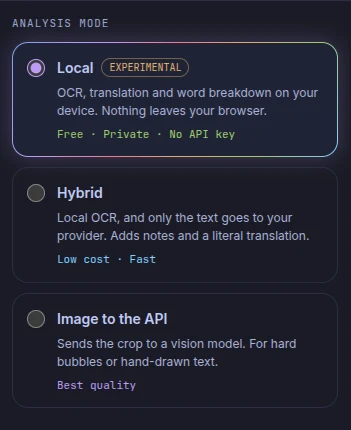
Local
The default mode. OCR (PP-OCRv6) and translation (the browser's built-in Translator API) run on your device, so the image never leaves your browser and you don't need an API key. The extension labels it experimental because it relies on a browser API that is still new. Full guide: Local mode.
Hybrid
OCR runs on your device and only the recognized text goes to your AI provider. Since no image is sent, it's faster and cheaper than Image to API, and it adds notes and a literal translation. Any text model works.
Image to API
The cropped image goes to a vision model from your provider, which reads and translates at once. It's the best option for hand-drawn lettering, heavily stylized fonts or low-contrast pages. The model must accept images.
Hybrid and Image to API need an AI provider. If you'd rather nothing leaves your computer, use a local model with Ollama.
How to switch modes
There are three ways, and the change applies to your next scan:
- The mode chip in the panel header (for example,
Local · 日 → EN): click it to pick another mode. - Settings → Analysis mode: the selected mode has the rainbow border.
- Change in the window that opens when you click the KomaLens icon.
Tip
A handy combination: keep **Local** for everyday reading and switch to **Image to API** only when a page resists. If OCR finds no text, the error message itself offers to send the image to the API.